Wanted Posters (Steckbriefe)
A wanted poster (German: Steckbrief) is the heart of I Think It’s You. It’s how you describe a sighting — a moment in real life where a connection might still happen — so the right person can read it.
This page explains how to read, write, edit and delete wanted posters, and what every field in the form is for.
What’s on a wanted poster?
Each poster carries:
Title (optional) — a short headline.
Content (required) — the story of the sighting. Where, when, what happened, what made the moment stick.
Sighting type — what kind of sighting this is (see Sighting types).
Constellation (pairing) (optional) — which constellation the sighting belongs to (M-M, W-W, M-W, W-M, not relevant).
Reward for finding me (optional) — a free-text “thank you” you’d offer if the connection happens (e.g. “Coffee on me”, “Dinner and a movie!”).
Language (optional) — the language the post is written in (English / German). Helps others filter the timeline.
Tags (optional) — see Tags and search filters for the three tag types (general, location, date/time).
Author and timestamps — your username and when the post was created and last edited.
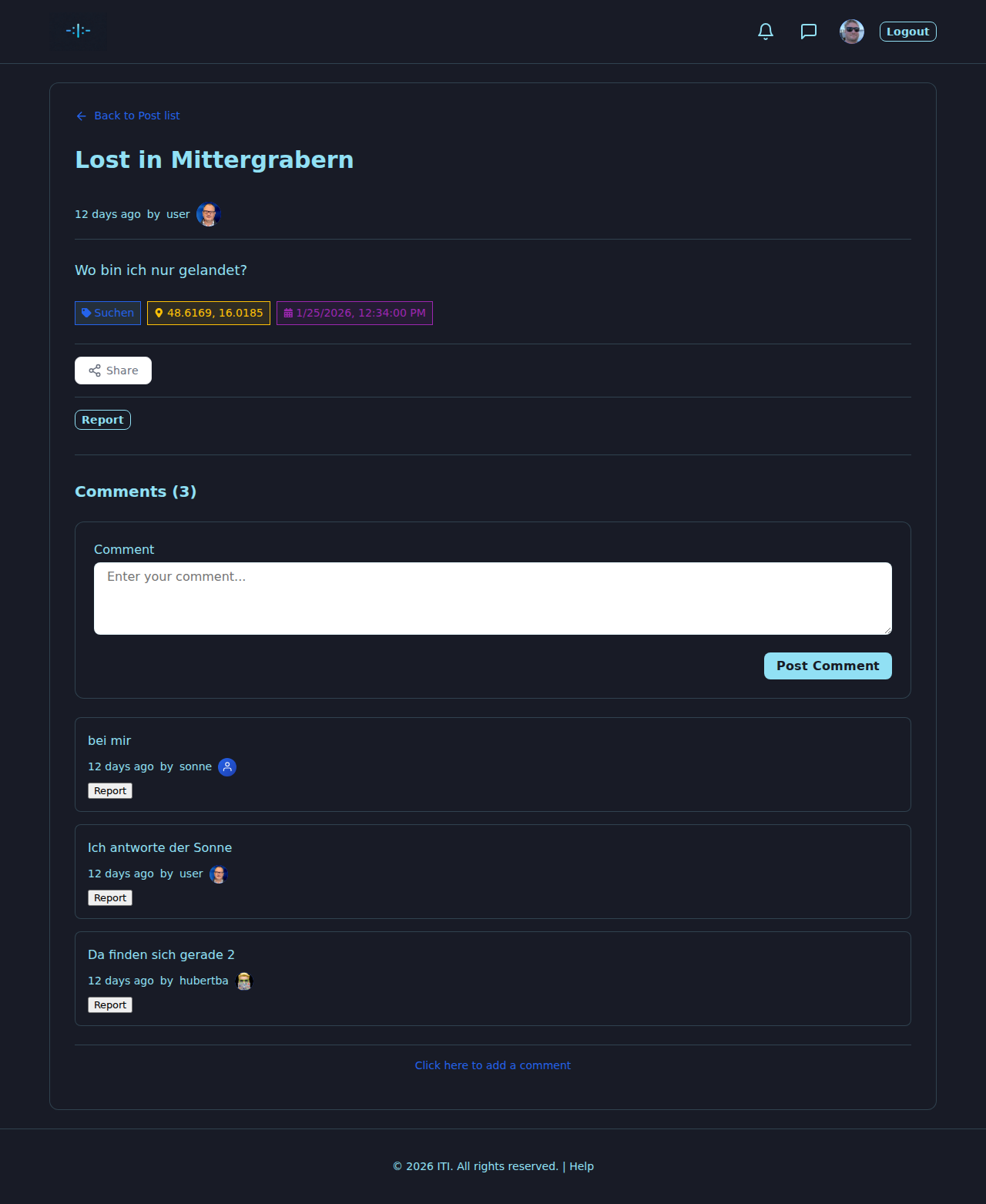
Reading the timeline
The home page is a timeline of wanted posters with a vertical date rail.
Each card shows the title (or the start of the content), the sighting-type chip with its emoji, the location and date/time tags as pills, the author and the time since publication.
Tap a card to open the detail page, which shows the full content, the reward (if any), all tags, and the comments thread underneath.
Scroll down for older posters; the timeline groups by day.
Use Browse Wanted Posters to open the search window and filter by sighting type, location radius, date range and free-text search — see Tags and search filters.
Writing a wanted poster
You must be signed in to write.
Click Create Wanted Poster in the header (or “Create New Post” depending on your language).
Fill in the form (described below).
Click Create wanted poster to publish.
You’ll land on the new poster’s detail page.
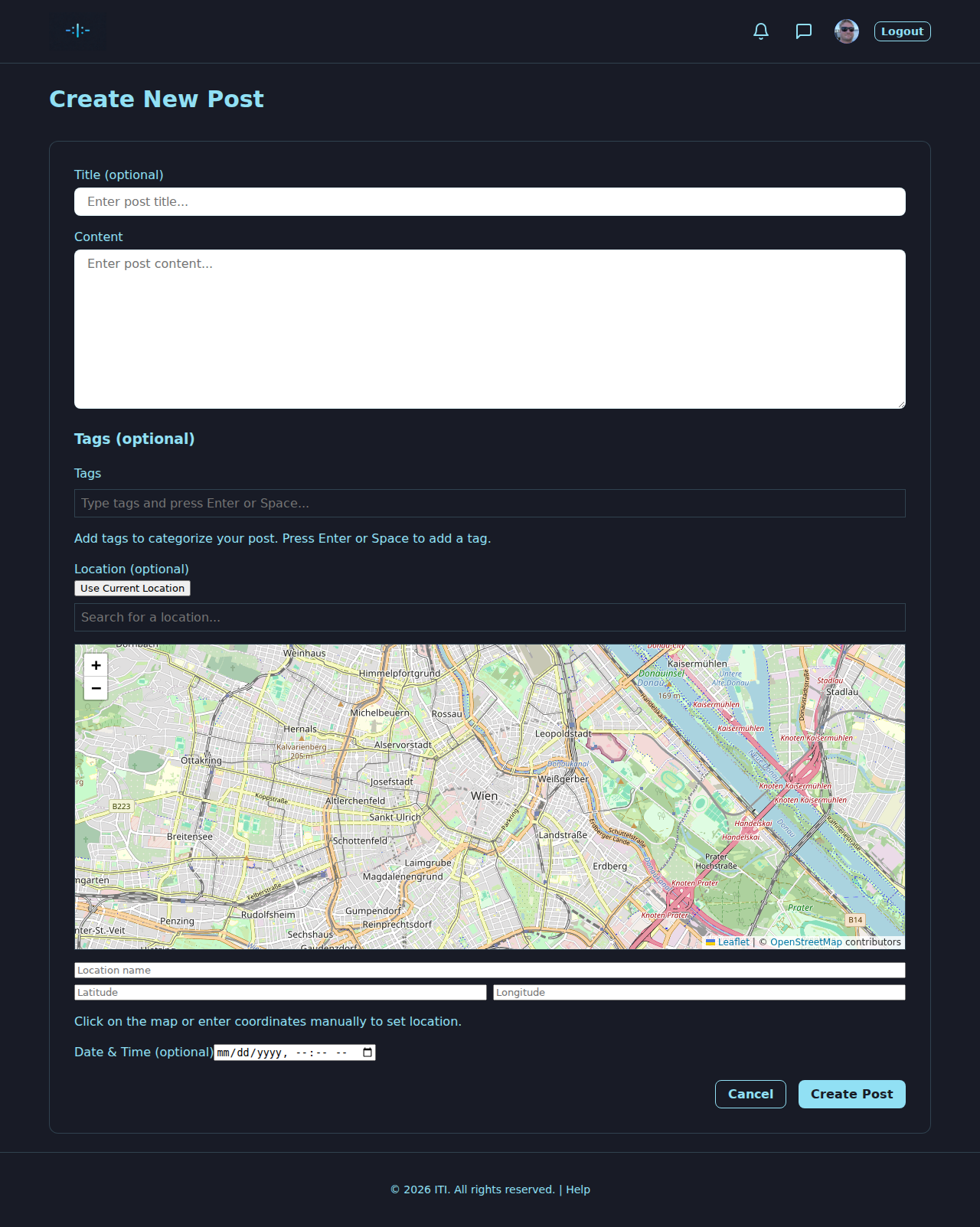
The fields, one by one
Title (optional) — a short, evocative headline. Skip if the content speaks for itself.
Content (required) — the story. Aim for the moment, not a list of physical features. “You laughed at the conductor’s joke at Vienna Westbahnhof, around 18:30 last Friday — we briefly looked at each other before you got off at Hütteldorf” works much better than “Tall guy with brown jacket”. Be specific about location and time, but stay respectful of the other person’s privacy. (See the Community Rules on the website.)
Sighting type — pick one (see Sighting types).
Constellation (optional) — set if relevant: M-M, W-W, M-W, W-M or not relevant. The labels are the constellation of the sighting (poster’s gender → other person’s gender).
Reward for finding me (optional) — a free, friendly “thank you”. Keep it light and tasteful.
Language (optional) — pick English or German. Lets readers filter posts by language.
Tags (optional) — add general, location and date/time tags. See Tags and search filters.
Tip
The post editor has an inspiration panel with a small prompt: “Writing a good sighting is easier than you think. Basically you’re telling a short story — about a moment that almost became something more.” Use it.
Sighting types
Every poster can carry exactly one sighting type. The choices are the same across the platform:
❤️ Missed Connection (Verpasste Begegnung) — you saw someone, didn’t talk, and would like a second chance.
🤝 Get to Know (Kennenlernen) — you’d like to get to know someone you noticed (even outside a romantic context).
🧠 Look Familiar (Bekannt vorkommen) — you have the feeling you know each other from somewhere and want to be sure.
🙏 Give Thanks & Praise (Danke sagen & Lob) — a public thank-you for someone’s kindness.
🌍 Network & Encounter (Netzwerk & Begegnung) — professional / networking encounter you’d like to follow up on.
👽 Miscellaneous (Sonstiges) — when none of the above fit.
You can change the sighting type any time by editing the post. Use Clear in the editor to remove it.
Editing a wanted poster
You can edit a poster you wrote. Moderators can also edit (with a reason that’s recorded for the audit).
Open the poster’s detail page.
Click Edit.
Change any field — content, title, sighting type, reward, constellation, language, tags.
Click Update wanted poster.
The post will display an (edited) marker so readers see that it has been touched. The full edit history is kept and visible to moderators.
Deleting a wanted poster
You can delete a poster you wrote.
Open the detail page and click Delete.
Confirm the deletion.
The poster is soft-deleted: it disappears from the public timeline immediately. Moderators can still see and (if appropriate) restore it.
Note
Deletion is reversible only by a moderator. If you’ve accidentally deleted the wrong post, please use the Contact form on the website rather than re-creating it immediately — sometimes restoring is the better option.
Reporting a wanted poster
If a poster crosses a line (identifying data, harassment, sensitive content, …), use the Report action on the post. You’ll be asked for a short reason. The post is immediately hidden from the public list and queued for review by the moderation team. See Moderation.
Best practices
Tell the story, not the person. Describe the moment, the situation, the feeling.
Be specific about place and time. Two posts (e.g. boarded in Salzburg / arrived in Linz) for trips with two locations.
Pick the right sighting type. It changes who reads.
Add tags. They’re how the right person finds you.
Stay respectful. Read the Community Rules before posting.
Don’t share contact data publicly. Use messaging (see Direct Messages) for that.
What’s next?
Tags and search filters — how tags shape discovery.
Comments — talk publicly under the poster.
Direct Messages — talk privately one on one.
Moderation — how reporting and moderation work.