Your Profile
Your profile page is your home on I Think It’s You: it shows your account info, your profile picture, and an overview of everything you’ve posted and commented on.
Opening your profile
Sign in.
Open the user menu in the header (your username or profile icon).
Choose Profile.
You can also reach it directly via /profile.
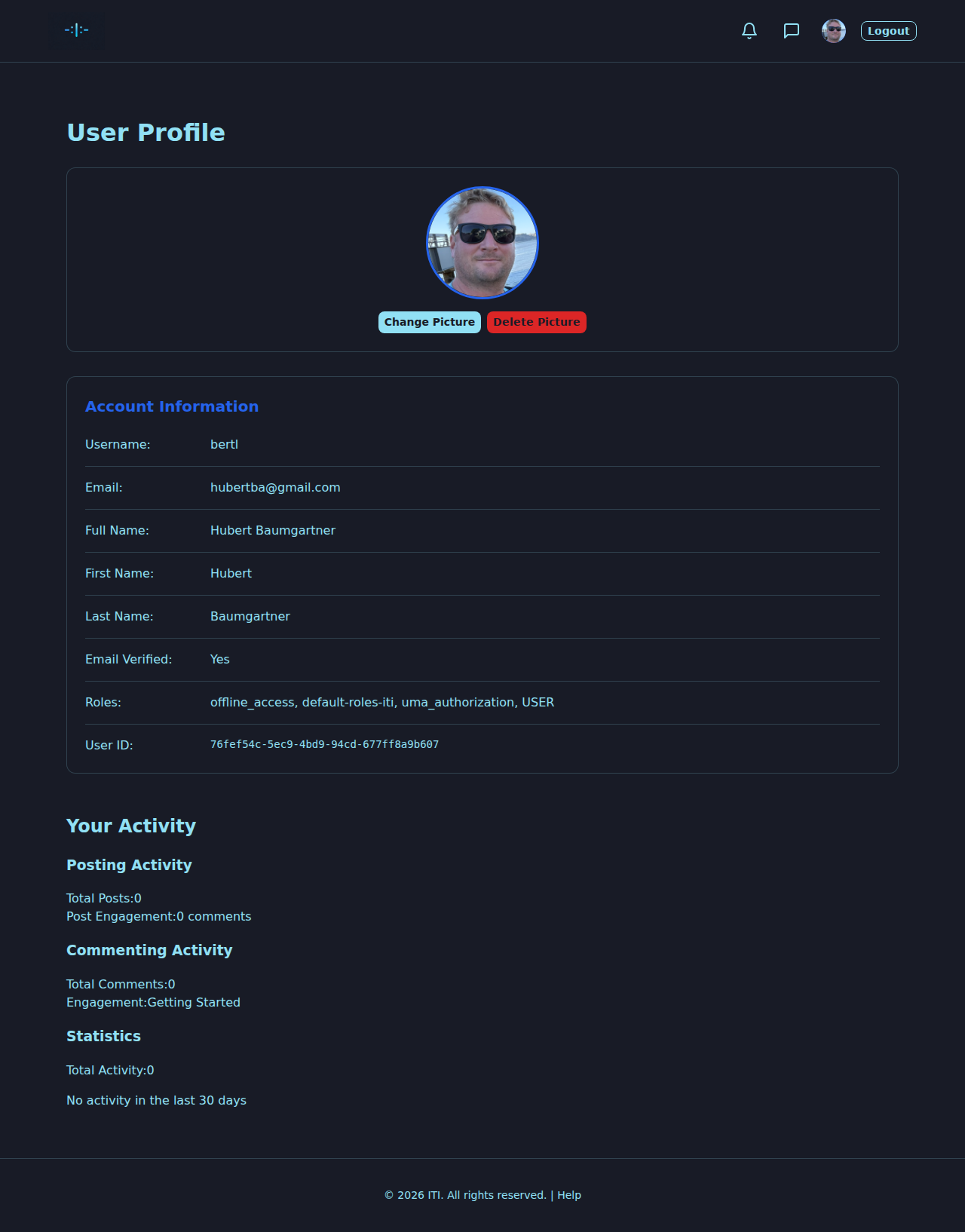
What’s on your profile
Profile picture — uploaded image, or a default placeholder if you haven’t set one yet.
Username — the name you appear under everywhere.
Account info — basic details from your Keycloak account (read-only here; change them in Keycloak).
Activity — the wanted posters and comments you’ve created, with links straight to the original.
Statistics — counts and basic timing (e.g. account age).
Profile picture
Your picture appears on every poster and comment you write. You manage it directly from the profile page.
Upload a picture
In the Profile picture section click Upload picture.
Pick an image file (JPG, PNG, WebP, …).
The image is automatically compressed and resized.
Your new picture appears immediately.
Crop — if a cropper opens after upload, drag the frame to pick the part you want and confirm.
Change your picture
Click Change picture and pick a new file.
The new picture replaces the old one.
Delete your picture
Click Delete picture and confirm.
The default placeholder takes its place.
Guidelines
Use an image you’re allowed to use (your own or with permission).
Keep it tasteful — it’s visible to the whole community.
Faces work better than logos for being recognised in real life if someone wants to send the :|: signal back.
Account information
Username and e-mail are managed in Keycloak, our identity partner. You can usually change them through your Keycloak account-management page (linked from the sign-in flow). If in doubt, write to us via the Contact form on the website.
Password changes also happen in Keycloak. Use Forgot password? on the sign-in page or the Keycloak account console — see Account, Sign-in and Settings.
Language and theme can be changed at any time from the header — they apply across the site.
Your activity
The activity area on your profile shows:
Posting activity — wanted posters you wrote, with quick links and the action buttons that apply to you (Edit / Delete).
Commenting activity — comments you wrote, with a link back to the original post.
Statistics — totals and timeframes (account age, number of posts, …).
Soft-deleted posts and comments don’t appear in the public counts but may be visible to you depending on the page; ask the moderation team if you need them restored.
Privacy
Your username, profile picture and public posts / comments are visible to everyone.
Your e-mail address is private and never shown on the platform.
Your direct messages are visible only to you and the other participant. See Direct Messages.
Your notifications are private. See Notifications.
Best practices
Add a profile picture so people who saw you in real life can put a face to the username.
Keep your profile active — regular sightings and respectful comments build a friendly reputation.
Review your old posts from time to time; archive what no longer matters.
Treat your password like the key to your house, because it is.
What’s next?
Account, Sign-in and Settings — sign-in, Keycloak and password.
Wanted Posters (Steckbriefe) — write your next wanted poster.
Direct Messages — keep private things private.