Tags and search filters
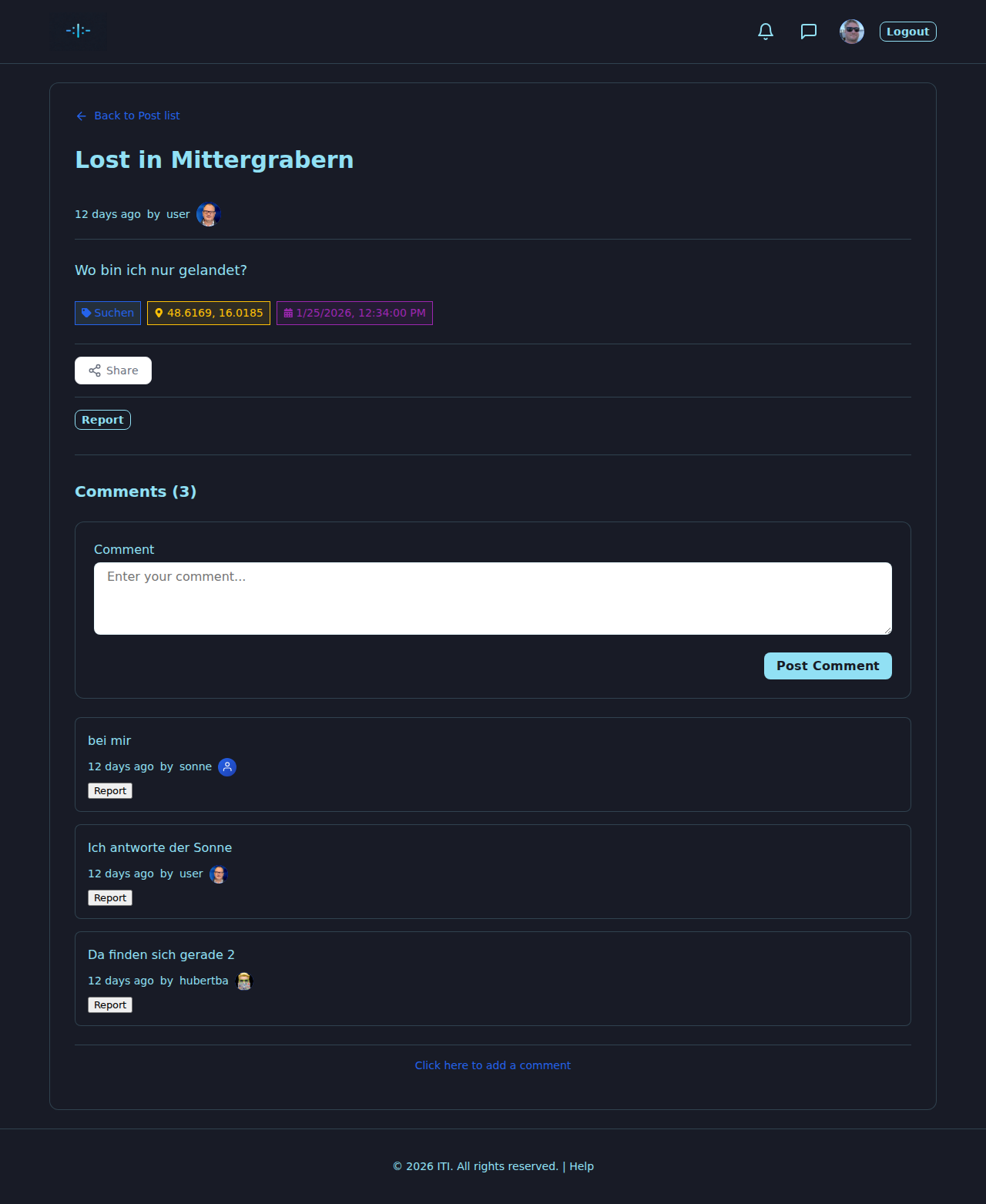
Tags are how the right person finds your wanted poster. They sit on the post card, on the detail page and in the search window. Pick them well and you save everyone a lot of scrolling.
The three tag types
I Think It’s You has three kinds of tags. Every post can carry several of each.
General tag — a free-form keyword you type yourself. Examples:
crime-club,train,bookshop,brown-coat,vienna-westbahnhof. Use lower-case hyphenated words; reuse existing words where possible so searchers find you.Location tag — a place with geographic coordinates and a human-readable name. Pick it from the map / location picker in the editor, or type a place name and let the picker suggest the matching coordinates. Location tags drive the search by radius in the search window.
Date / time tag — a moment in time (or a window) when the sighting happened. Pick it from the date/time picker. Date tags drive the search by date range in the search window.
Adding tags to a wanted poster
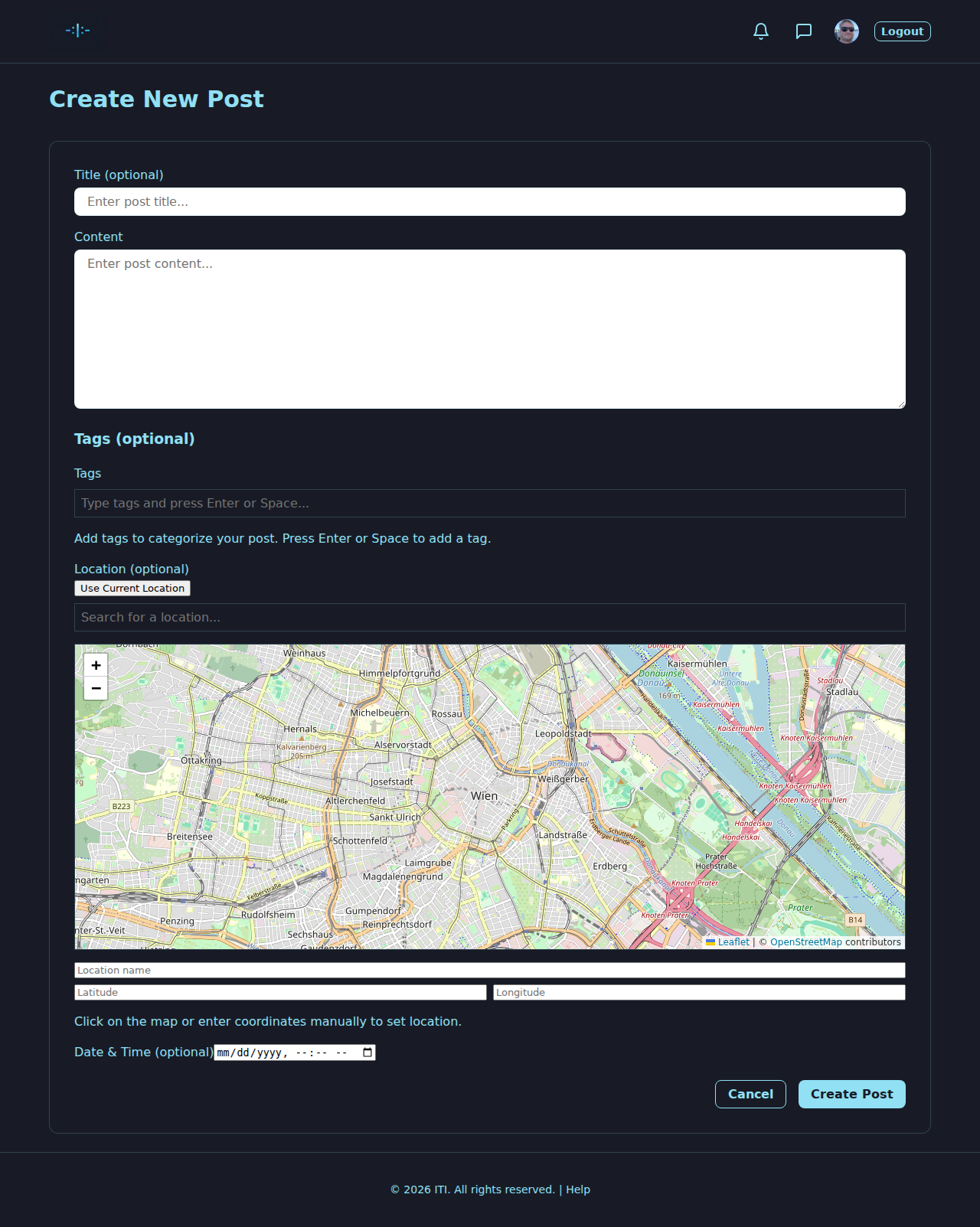
When you create or edit a poster (see Wanted Posters (Steckbriefe)):
Scroll to Tags in the editor.
Use the corresponding controls:
Type a general tag in the input and press Enter or Space to add it. Press Backspace to remove the last one.
Click the + Location button to open the location picker, drop a pin or search a place, and confirm.
Click the + Date / time button to open the date / time picker and confirm a date (and optionally a time).
Existing tags are shown as removable pills. Click the × on a pill to remove it.
Save the post.
Searching and filtering
Tap Browse Wanted Posters in the header to open the search window.
You can combine any of these filters; the timeline updates with the result count.
Free-text search — searches the title and content of posters. Tip: try the German wording too if you read in both languages.
Sighting type — narrow to one of the six sighting types (Missed Connection, Get to Know, Look Familiar, Give Thanks, Network & Encounter, Miscellaneous).
Location radius — pick a centre point on the map and a radius (e.g. 5 km, 25 km). Only posters whose location tag falls inside the circle are shown.
Date range — from / to dates. Filters posters whose date/time tag falls in the range.
Tap Reset to clear all filters and return to the full timeline.
Tip
Two short, well-tagged posts (e.g. one for the boarding station and one for the destination) work much better than a single tag-less wall of text. Each location tag turns into a separate “circle on the map” the search can find.
Best practices
Use real places, not made-up names — others will be searching for the same place.
Tag both legs of a trip with separate posts (e.g. boarding station and arrival station).
Pick the most narrow date you remember. “Last Friday evening” is better than “sometime last week”.
Reuse keywords for general tags so similar posts cluster together.
Don’t tag identifying data (no names, no exact addresses, no licence plates). The Community Rules apply.
What’s next?
Wanted Posters (Steckbriefe) — the wanted poster the tags hang on.
Your Profile — your own posts and tags in one place.